HoloRecording PlayBack
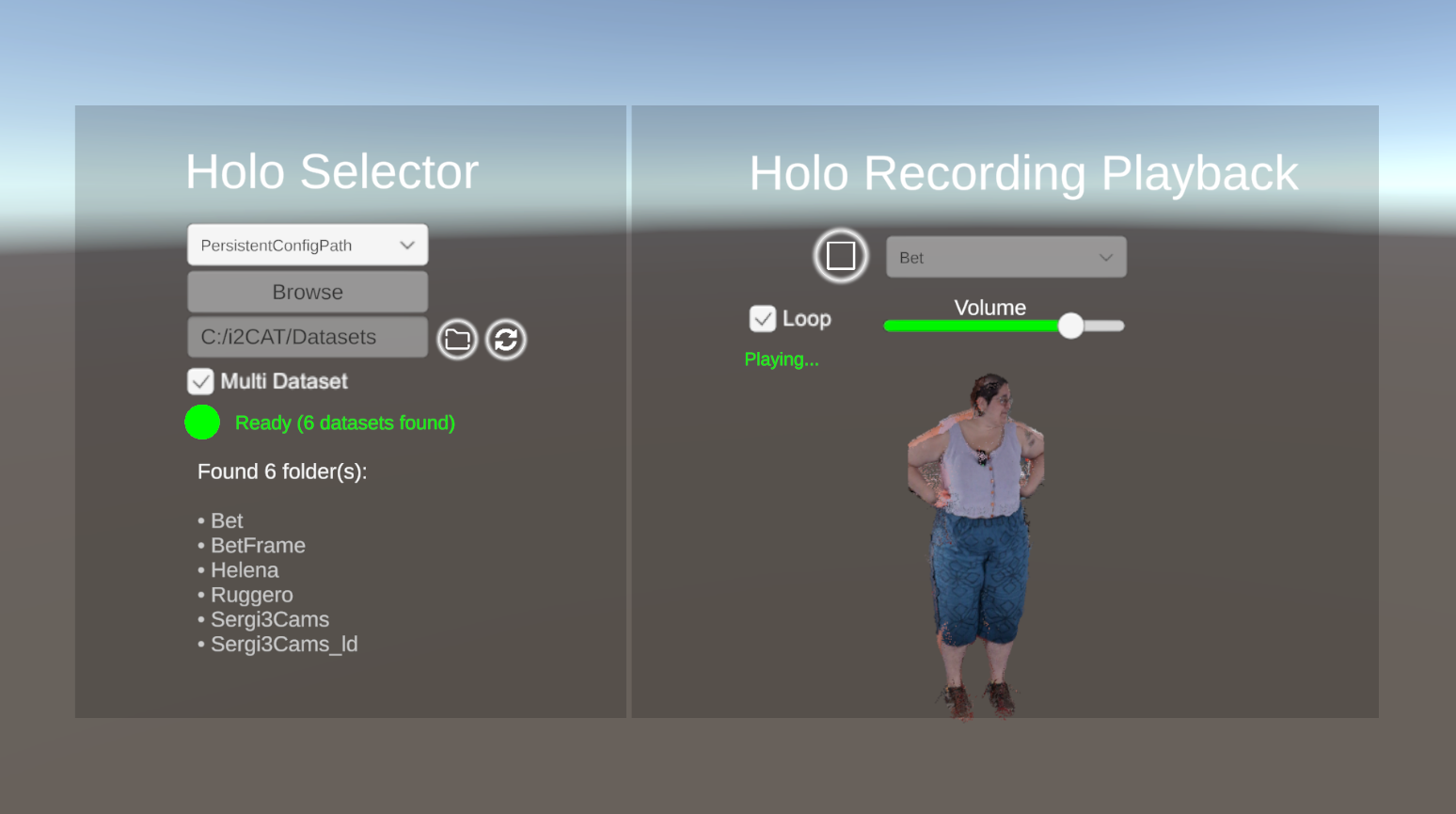
The main advantage of this sample is that it provides a ready-to-use setup, meaning you do not have to manually follow the steps described in the HoloRecordingPlayback documentation. The sample comes completely configured with the HoloRecordingPlayBack and HoloSelector components added and a functional UI to control playback.
Example UI Scripts
The sample includes a custom UI to control the playback flow and data selection. These UI scripts act as an example for your holo-recordings, allowing you to load datasets and play, stop, or loop them using the core components from the SDK (capturer.dll).
You can find the following example scripts in the package:
HoloRecordingPlayBackUI.cs: Handles the main playback controls (Play, Stop, Loop, Volume) and visually updates the interface by listening to theOnPlaybackStartedandOnPlaybackStoppedevents from the core controller.HoloSelectorUI.cs: Manages the dataset library and updates dropdown menus by hooking into theOnDatasetsRefreshedevent.
Creating Your Own UI
These scripts are fully open source within the SDK package and serve as practical examples. You can inspect them to learn how to create your own custom interface:
- Reference the Controller: Keep a reference to the
HoloRecordingPlayBackorHoloSelectorcomponents in your script. - Subscribe to Events: Use standard C# event subscriptions (e.g.,
controller.OnPlaybackStarted += YourMethod) to trigger visual updates in your UI when the playback state changes in the DLL. - Call Methods: Hook your UI buttons to call methods like
controller.PlayDataset("Name")orcontroller.StopPlayback().