Example Session
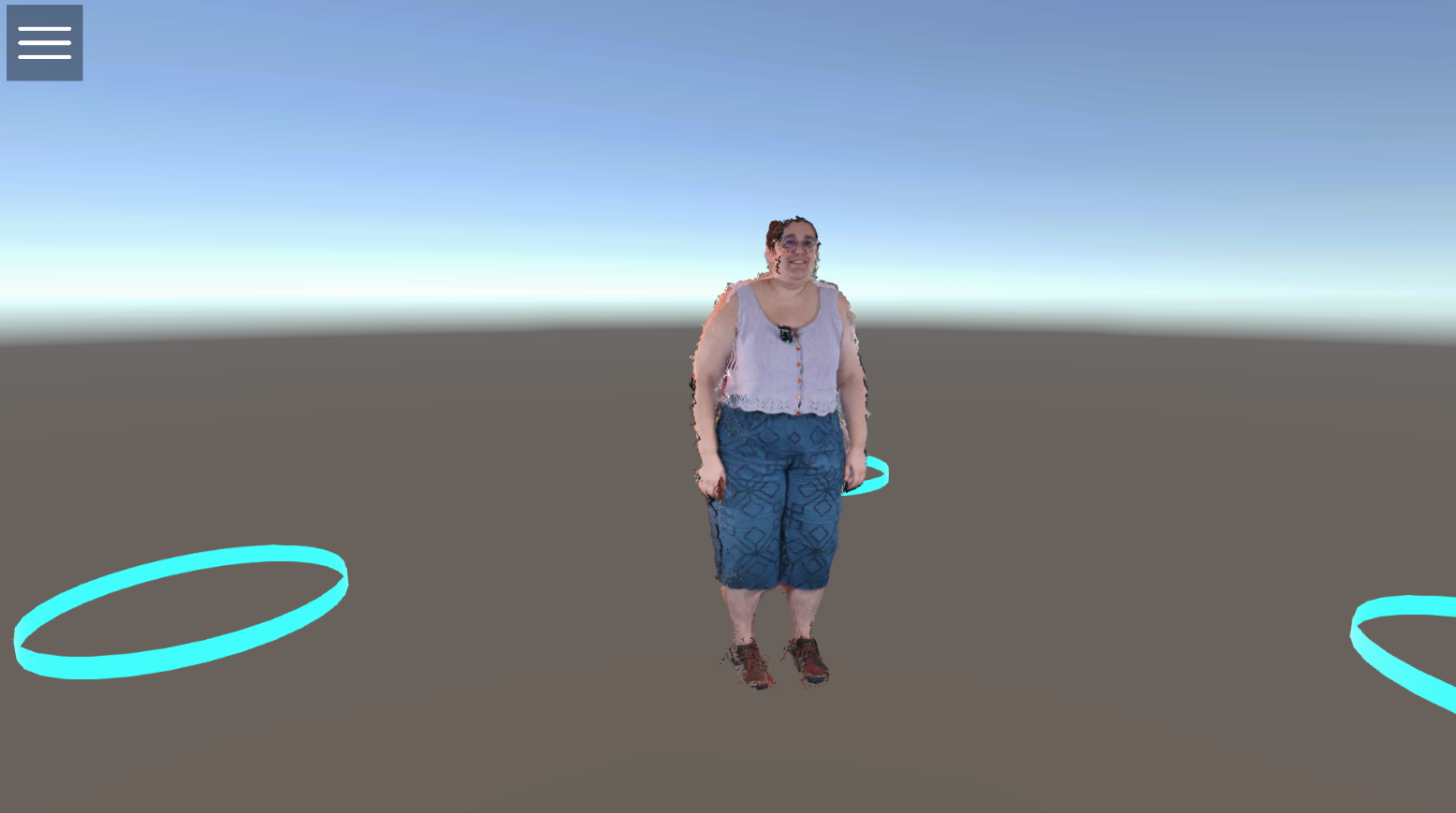
Project Path: Assets\Samples\ExampleSession
This sample is the second piece required to access a remote (or local) session. After passing through the Menu, the user is redirected to a session. This scene contains the fundamental elements for developing a collaborative multi-purpose environment with avatars.
Importing the Sample
To use this sample, you must first import it into your Unity project:
- Navigate to Window -> Package Manager in the top menu.
- Select the HoloMIT package.
- Open the Samples tab.
- Locate the Example Session sample and click Import.
Scene Elements
To get started, open the scene named ExampleSession.unity located in Sample/ExampleSession/Scenes and review the default elements.
If you don't want to use this complete sample and prefer to create your own scene from scratch, you can add the necessary components separately in the same way as the Menu sample:
- Go to the Unity Toolbar and select
HoloMIT->Quick SetUps->Pilot Set Up. - Or manually from
HoloMIT->Pilot.
Key Components
These are the main elements (which also function as Prefabs) that you will find in the sample:
-
Example Manager: This is the main component responsible for controlling the general events of the scene and the session. It manages active sessions and allows, for example, scene switching to return to the main menu or other key application flow transitions.
-
Player Root: This component is responsible for managing and organizing the positions of users (and their avatars) within the 3D environment. It controls where they spawn and how they are positioned in the scene.
Learn more: For more details on how player management works internally, review the
SessionPlayerManagercomponent documentation.
Unified Menu System
Another important feature incorporated in this sample is the Unified Menu System.
This is a unified menu system designed for both PC (Desktop) and Virtual Reality users (using a wrist menu) that greatly facilitates interaction with the scene. It is a highly intuitive and easy-to-use system.
Currently, this menu includes the following quick features:
- Leave Session: Leave the current session and return.
- Logs: View system logs and status.
- Self Calibration: Start the self-calibration process (see Self Calibration Sample).

Step by Step Guide
To ensure the session works correctly:
- Build Profiles: Add the
ExampleSessionscene to yourBuild Profiles->Scene List. - Review Components: Verify that the
Example Manager, thePlayer Root, and theUnified Menu Systemare correctly added to the scene and active. - Entry Point: Remember that you usually access this scene through the Menu. Make sure the
MenuControllerpoints to this scene. - Play: Once everything is configured, you can enter the session, interact with the environment, and view your avatar according to your preferences.