Teleportation System
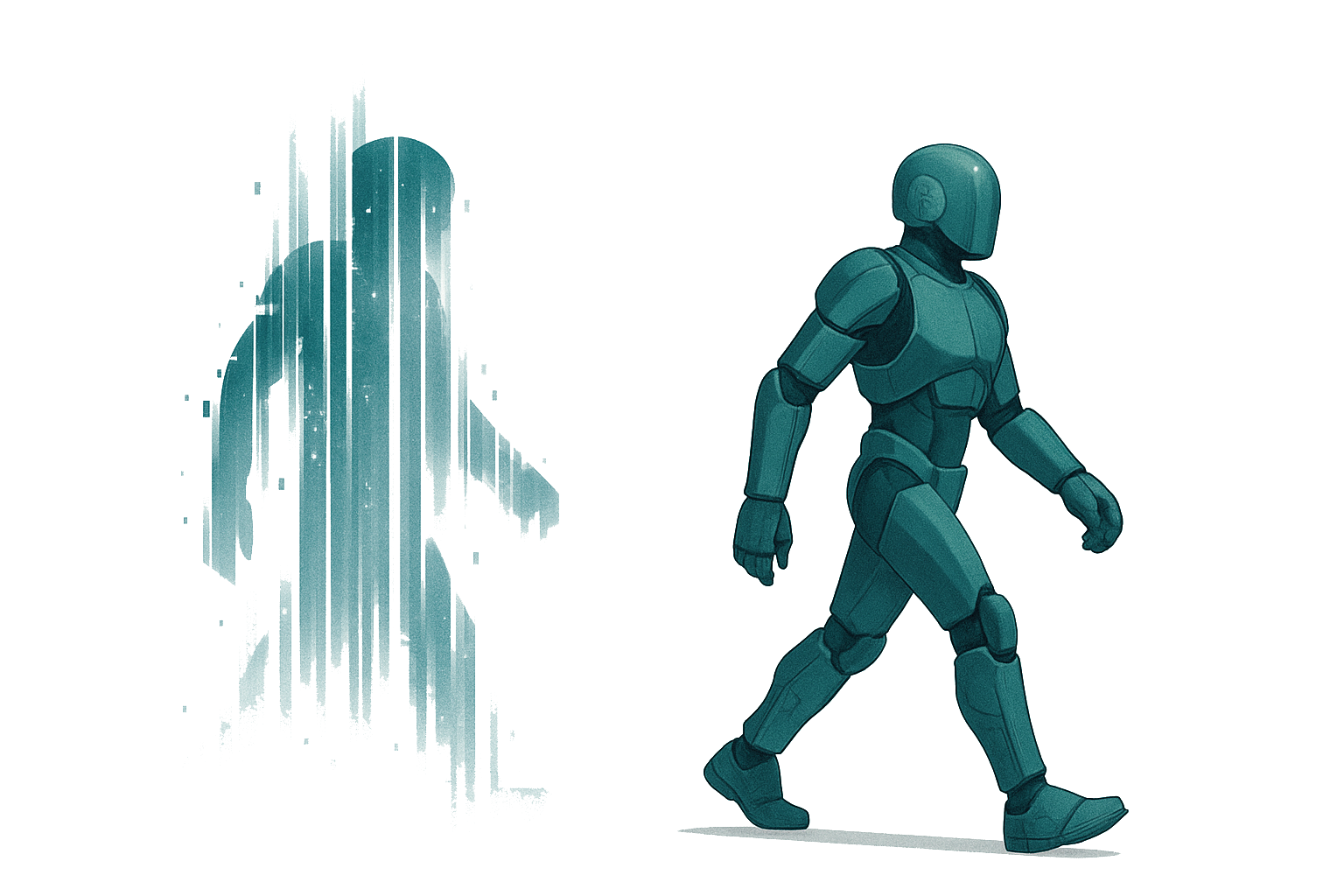
The teleportation module enables users to move instantly within the environment using a raycast-driven pointer and a configurable arc. It works with Unity’s New Input System and the XR Interaction Toolkit to provide a smooth, VR-friendly teleport experience.
Overview
- Draws an arc or straight ray from the controller to preview teleport destinations.
- Supports selection and confirmation via configurable Input Actions.
- Automatically disables the pointer visualization when the activation button is released.
- Teleports the player’s transform to the detected ground point, applying a small offset along the surface normal to avoid clipping.
Requirements
- Unity 2022.3 LTS or later
- New Input System package enabled
- XR Interaction Toolkit (for VR detection and controller tracking)
- CharacterController or similar on the player’s body for collision handling (optional but recommended)
Setup
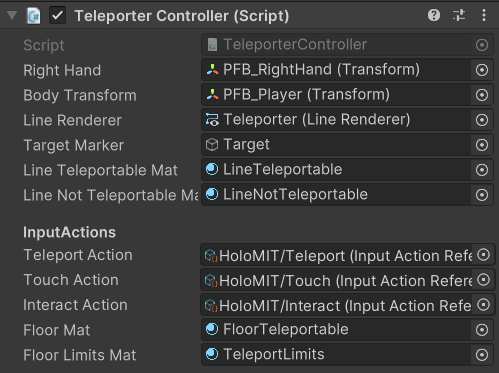
- Add the TeleporterController prefab component to your player rig:

- Assign the right-hand transform (
rightHand). - Assign the player body transform (
bodyTransform) that will teleport. - Provide materials for teleportable (
lineTeleportableMat) and non-teleportable (lineNotTeleportableMat) surfaces.
- Configure the InputActionReferences:
- teleportAction: button to activate the pointer (hold).
- touchAction: (optional) for pointer feedback.
- interactAction: button to confirm teleport destination.
- Place the tag named Teleportable on the GameObjects that can be teleported.

- Set raycastLayers to include the valid teleport surface layers that the raycast will be able to hit.

- (Optional) Enable canRotate and adjust
rotationSpeedto allow snap or smooth rotation while aiming.
Usage
- Activate Pointer: Hold the
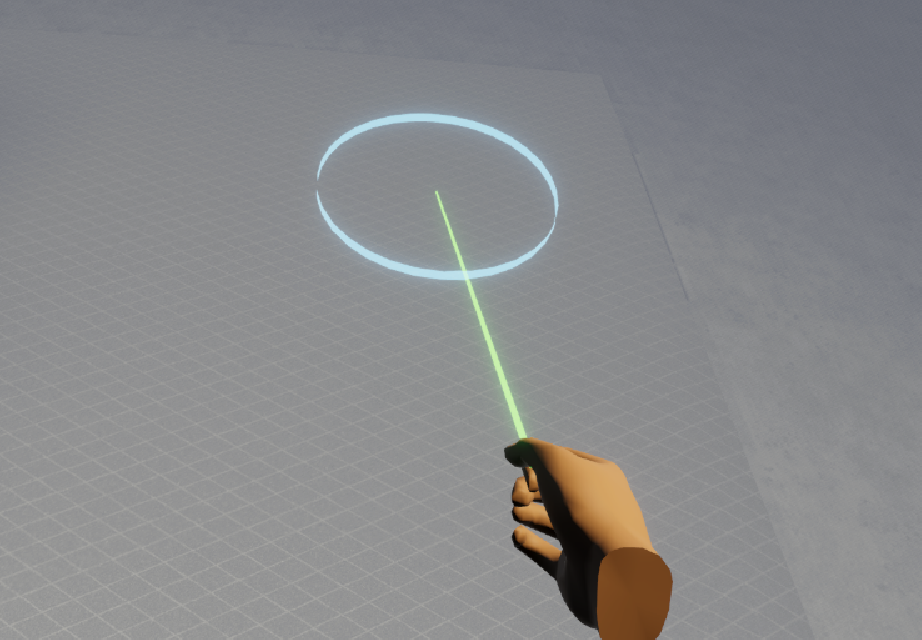
teleportActionto show the pointer or arc. - Correct Aim: Point at a valid surface; the material and marker update to indicate validity.
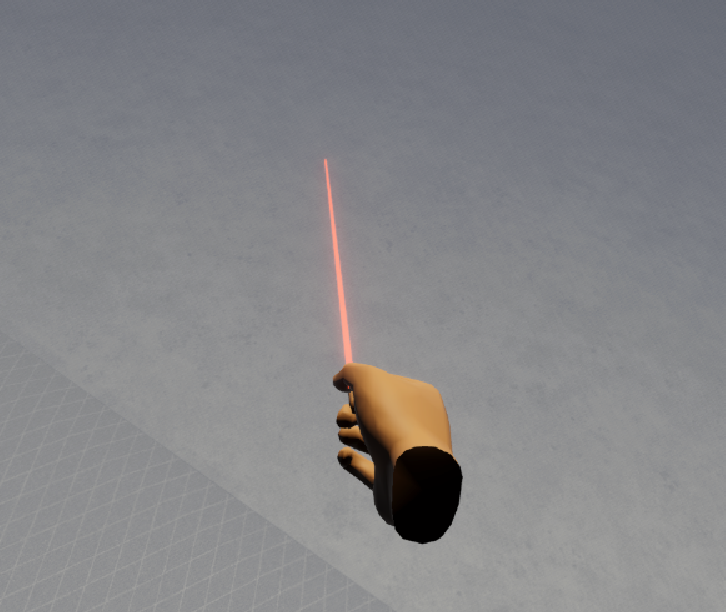
- Wrong Aim: Aim at an invalid surface; the beam material will appear red and there will be no marker.
- Confirm: Press the
interactActionto teleport. - Automatic Cleanup: The pointer and marker hide automatically after teleporting.
Known Limitations
- No built-in fade or blink transition; consider adding a screen fade for comfort.
- Arc updates are frame-rate dependent; smoothing may be needed for consistent feedback.
- Ground detection uses Unity physics; ensure valid colliders on teleport surfaces.
- Teleport ignores obstacles between the marker and player; verify that landing areas are safe.