Cloud Viewer
The Cloud Viewer is a core module of the Cloud Recording System designed to fetch, manage, and reproduce volumetric datasets from the cloud. Unlike live players, these recordings are treated as networked Cloud Content.
Understanding CloudContent
The system treats pre-recorded data as a first-class entity within the session:
- Network Persistence: When a user starts playing a cloud recording, it is instantiated in the session as a
CloudContentobject. This content is shared across the network, meaning all users in the same session will see the recording at the same time. - Organization: Instantiated contents are placed inside a dedicated folder named
CloudContentswithin thePlayerRoothierarchy, keeping them separate from live players. - Core Integration: The system utilizes a
CloudContentManager(replacing older implementations) to handle the lifecycle of these objects, ensuring they join and leave the session correctly for all participants.
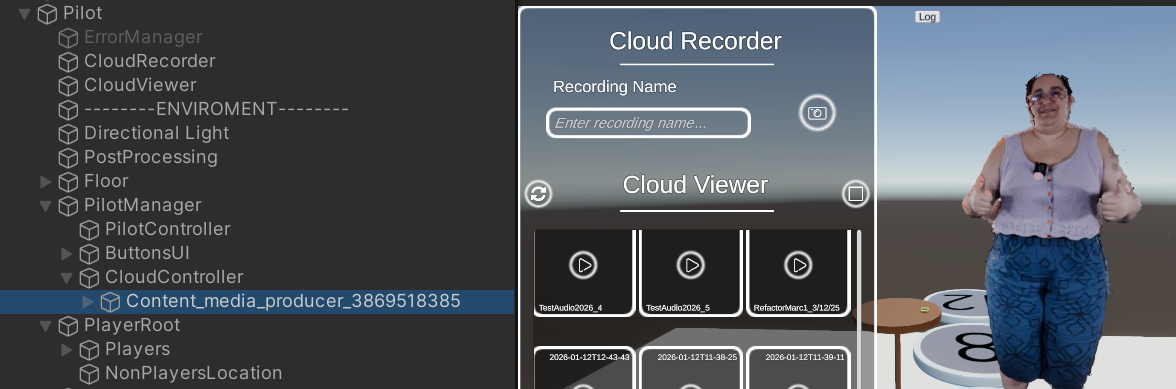
Figure 1: Scene hierarchy showing the separation between live Players and CloudContents.
Integration and Usage
1. Controller Setup and Predefined Transforms
Attach the CloudViewerController component to an empty GameObject. This controller handles the backend logic for fetching lists and managing playback queues.
- Content Spawn Positions:
CloudContentscan now have a predefined transform. In the Inspector, you will find aContentPositionslist where you can define specific Transforms. When playing a content, the system will automatically instantiate it at the position of the lowest available index.
2. Fetching, Playing, and Inspector Options
- Refresh and Individual Control: Use
RefreshContentList()to pull the latest recordings from the server. Now, in the Unity Class Editor (Inspector), all downloaded contents will appear after refreshing. Each listed Cloud Content includes an Audio toggle and direct Play/Stop buttons to operate them individually right from the editor. - Playback: Call
PlayContent(). The controller manages a queue to handle multiple rapid requests and ensures the correct stream is started.
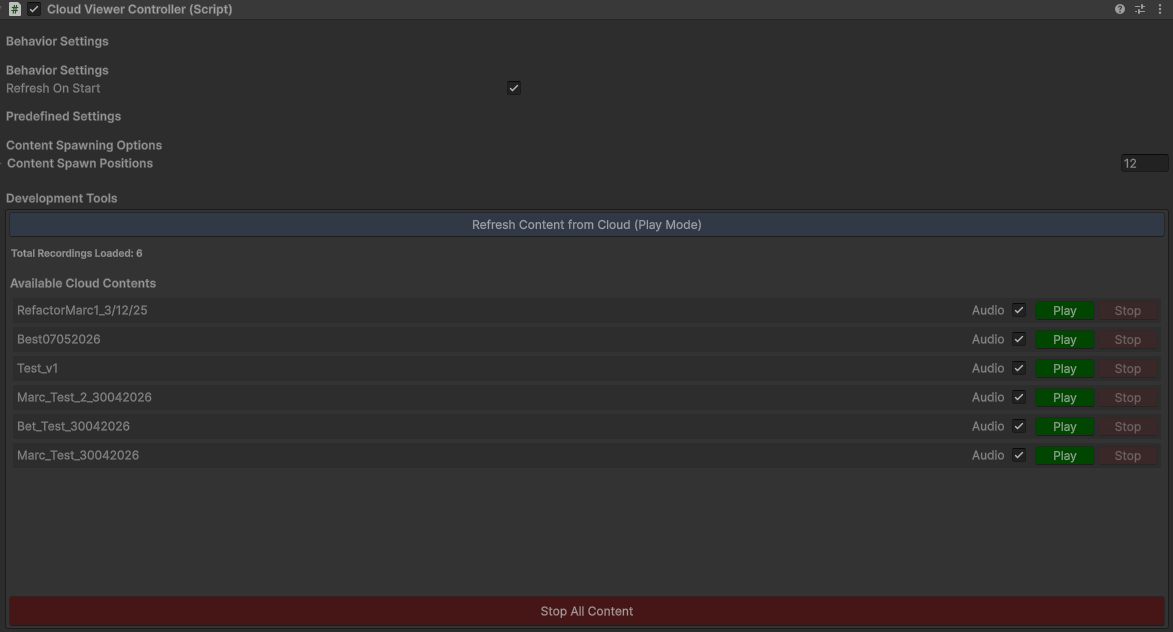
Figure 2: CloudViewerController showing predefined positions and the new individual control options per content.
3. Sample Scene Environment
To facilitate usage in the SDK samples, the CloudViewer Sample Scene has special characteristics:
- Automatic Private Sessions: Just like in the CloudRecorder, every time you start the sample scene, a session with a new and completely random UID is automatically created. This guarantees that you will be alone in that session.
- Isolated Mode: There is no
UserManagerin the sample scene; the user logs in with a "none" representation. The scene contains strictly what is necessary for the CloudViewer to function independently. However, if you use this same system in another production context with a normal session and multiple people, the contents will work perfectly and remain networked.
4. UI Implementation
The provided CloudViewerUI acts as a "Passive View" and includes two ready-to-use examples:
- Grid Gallery: A modern layout using
CloudContentItemUIcards. - Legacy Dropdown: A simple list for quick selection.
Developer Implementation
The CloudViewerController provides a robust API to interact with cloud data without needing to handle low-level networking.
using Holo.Pilots.Common;
using UnityEngine;

public class ViewerExample : MonoBehaviour {
    public CloudViewerController viewer;

    public void PlayFirstAvailable() {
        var list = viewer.GetCachedContentList();
        if (list.Count > 0) {
            // Play the content, passing its specific audio configuration
            viewer.PlayContent(list[0], list[0].playAudio);
        }
    }
}
Important Considerations & Troubleshooting
- Session Requirement: You must be in a session to use the Cloud Viewer. The server will reject playback requests if it cannot verify your session.
- Error 500 (No Session): This usually happens if the local Node.js server was restarted while Unity was in Play Mode. Restart Unity Play Mode to re-register the session.