Configuration Settings
The Configuration tab exposes all the SDK runtime parameters in a set of collapsible sections. All values are read from and written to config.json in StreamingAssets. Click Save at the bottom of the tab to apply any changes.
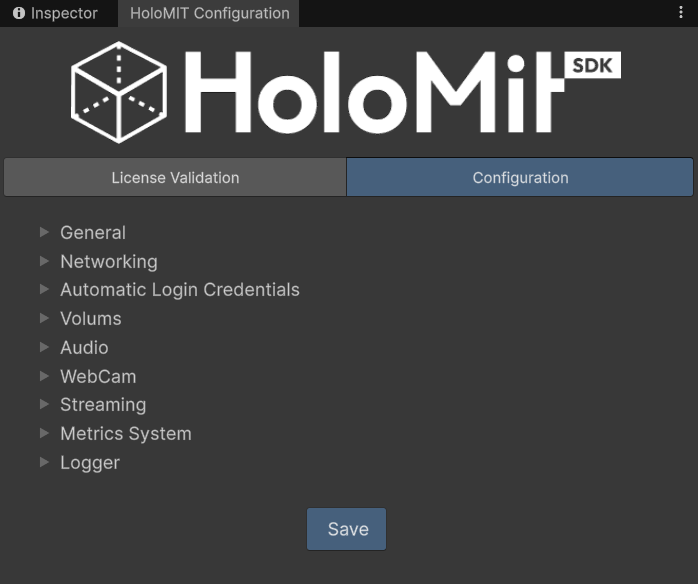
For a full reference of the underlying JSON structure, see Configuration File.
General
Basic application settings.
| Field | Type | Default | Description |
|---|---|---|---|
| Application Target FPS | Integer | 90 | Target frame rate for the application. 90 fps is recommended for XR headsets. |
| Non-HMD Height | Float | 1.5 | Default camera height (metres) when no headset is connected. |
Networking
| Field | Type | Default | Description |
|---|---|---|---|
| Orchestrator URL | Text | https://holoconfsdk.i2cat.net:8080 | URL of the session index server. If left empty, the default value is restored automatically on the next repaint. |
Automatic Login Credentials
Fields used when performing an automatic login without any user interaction at runtime.
| Field | Type | Default | Description |
|---|---|---|---|
| User Name | Text | — | Username sent to the orchestrator during automatic login. |
| User Password | Text | — | Password for the automatic login user. |
| Session Prefix | Text | — | String prepended to the session name when creating or joining a session automatically. |
| Microphone | Combo | — | Name of the microphone device to use. The dropdown lists all devices detected by Unity; free text is also accepted for custom device names. Click ↺ to refresh the device list. |
| Webcam | Combo | — | Name of the webcam device to use. Same combo-field behaviour as Microphone. |
| Representation Type | Dropdown | Avatar | How the local user is represented to remote participants. Options: Avatar, RGBD, Spectator, None. |
Volums
Encoding and rendering settings for the volumetric video (RGBPM) pipeline.
| Field | Type | Default | Description |
|---|---|---|---|
| Codec | Dropdown | h265 | Video codec used to compress the volumetric stream. |
| GPU Encoding | Toggle | false | Enables hardware-accelerated encoding. Requires a compatible GPU and driver. |
| FPS | Dropdown | 30 | Capture and streaming frame rate. Options: 15, 24, 30. |
| GOP | Integer | 5 | Group of Pictures size. Controls how often keyframes are inserted. |
| CRF Color | Integer | 17 | Constant Rate Factor for the colour stream. Lower values = higher quality, larger file size. |
| CRF Position | Integer | 0 | Constant Rate Factor for the depth/position stream. |
| Pixel Format | Dropdown | YUV444p | Pixel format used for encoding. Options: YUV444p, YUV420p. |
Render
Sub-settings that control how the decoded point cloud is rendered in the scene.
| Field | Type | Default | Description |
|---|---|---|---|
| Cell Size | Float | 0.0012 | Size of each rendered point cloud cell. Smaller values increase visual resolution but reduce performance. |
| Use Normals | Toggle | false | When enabled, normals are used for shading and back-face culling of the point cloud. |
| Normal Culling Threshold | Float | -90 | Dot-product threshold used when culling back-facing cells. Only active when Use Normals is enabled. |
Audio
| Field | Type | Default | Description |
|---|---|---|---|
| Codec | Dropdown | Opus | Audio codec for microphone capture and transmission. Opus is recommended for low-latency network audio; Speex is a lighter fallback. |
WebCam
Encoding settings for the 2D webcam stream.
| Field | Type | Default | Description |
|---|---|---|---|
| Codec | Dropdown | h264 | Video codec used to compress the webcam stream. |
| GPU Encoding | Toggle | false | Enables hardware-accelerated encoding for the webcam stream. |
| FPS | Integer | 15 | Webcam capture frame rate. |
| GOP | Integer | 15 | Group of Pictures size for the webcam stream. |
| CRF | Integer | 27 | Constant Rate Factor for the webcam stream quality. |
| Pixel Format | Dropdown | YUV420p | Pixel format used for webcam encoding. |
Streaming
Settings for the screen-capture streaming output (e.g. for RTSP broadcast or Spout output).
| Field | Type | Default | Description |
|---|---|---|---|
| Enable Streaming Build | Toggle | false | Activates the streaming pipeline in the build. |
| Protocol | Dropdown | — | Streaming transport protocol. Options depend on build target. |
| Width | Integer | — | Output stream resolution width in pixels. |
| Height | Integer | — | Output stream resolution height in pixels. |
| FPS | Integer | — | Output stream frame rate. |
| Video Bitrate (kbps) | Integer | — | Target video bitrate in kilobits per second. |
| Audio Bitrate (kbps) | Integer | — | Target audio bitrate in kilobits per second. |
RTSP
| Field | Type | Default | Description |
|---|---|---|---|
| URL | Text | — | Full RTSP endpoint URL where the stream is published (e.g. rtsp://server:8554/stream). |
Spout
| Field | Type | Default | Description |
|---|---|---|---|
| Sender Name | Text | — | Name of the Spout sender exposed to other applications on the same machine. |
| Keep Alpha | Toggle | false | Preserves the alpha channel in the Spout output texture. |
Metrics System
Settings for the performance statistics collector.
| Field | Type | Default | Description |
|---|---|---|---|
| Interval (s) | Double | 2 | How often (in seconds) performance metrics are sampled and logged. |
| Output File | Text | — | Path to the file where metrics are written. Leave empty to disable file output. |
| Debug Metrics | Dropdown | Both | Selects which metric categories are collected and displayed. |
Logger
Controls the in-app logging overlay.
| Field | Type | Default | Description |
|---|---|---|---|
| Log Detail | Flags | Verbose (7) | Bitmask of log levels shown. Combine levels freely: Log (1), Warning (2), Error (4), Verbose (7 = all). Use Warning | Error in production builds to reduce overhead. |
| Font Size | Integer | 12 | Font size of the in-app log overlay text. |
For more detail on the logging system, see Logging System.
Saving changes
When you are done editing, click the Save button at the bottom of the tab. This writes all values back to config.json and triggers an AssetDatabase.Refresh() so Unity picks up the changes immediately.
Changes made in the Configuration Window are only persisted when you explicitly click Save. Closing the window or switching tabs without saving will discard any unsaved edits.