Project Validation Window
Introduction
The Project Validation Window is a new tool for the SDK to make the installation process simpler and as much automatic as possible for SDK users. This tool will remark the outstanding fixes and recommendations to have the project well configured to use HoloMIT SDK.
This is an example of the final look. We will explain one by one what each icon means, and what the buttons actually do to solve the problems.
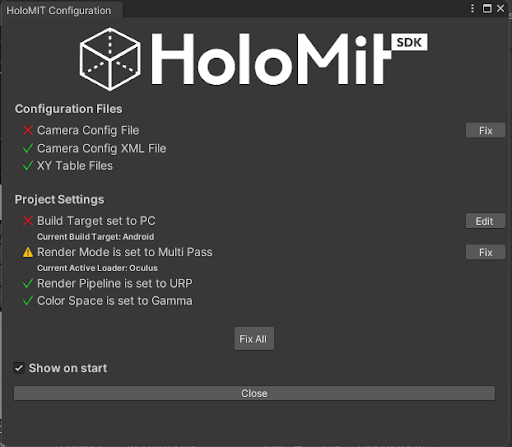
As we can see, we have 3 icons specifying whether we have errors or not.
❌ This is used to report an important error that is compulsory to solve before being able to use the SDK correctly.
⚠️ This is used to report a recommended fix that will make the SDK work better, even though it can work without this fix.
✅ This is used to show that everything is ok and ready to use.
How to use Project Validation Window tool
The tool will be installed along with the SDK. The first time we open the project after installing the SDK, the window will pop-up and report all the errors and recommended fixes.
At the bottom of the tool window, we will find the Show on start toggle. We can use it to indicate whether we want the window to pop-up when we open the project or not.
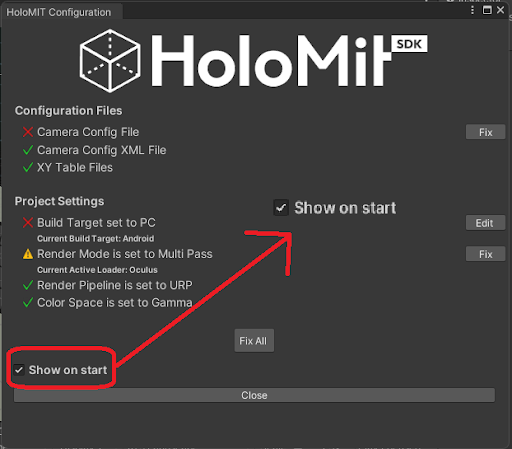
As we can see, we have 4 main types of buttons. Each one will have a functionality associated with it.
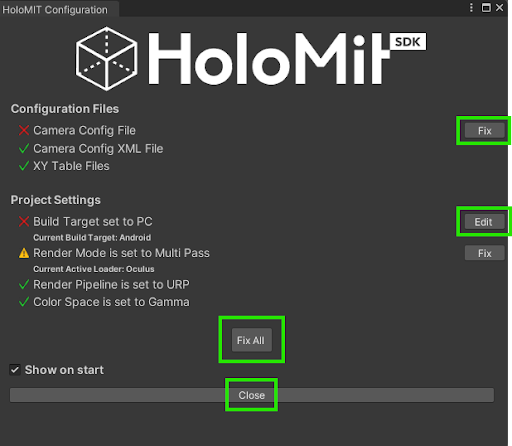
Fix → This button will automatically apply the needed changes in the project to solve the outstanding error.
Fix All → This button will apply all the needed changes to solve all outstanding problems remaining to be solved.
Edit → When the change that must be done is sensitive, or is a selection for the developer using the SDK, the Edit button is used. It will open the Unity window where the change must be applied, and the user will be able to choose what to do.
Close → This button closes the tool window.
How to reopen Project Validation Window once it’s closed.
If the window is closed, but later on the user needs to check something, it can be reopened. The button to reopen the window is situated near the Play button of Unity. Just by clicking it, the window will reopen again.
