HoloRecording PlayBack
1. Overview
The HoloRecordingPlayBack system is the primary engine for reproducing local volumetric video datasets within the HoloMIT SDK for Windows (Editor and Standalone Builds).
It manages the hardware decoding pipeline (HoloRecordingWindows), handles audio synchronization, and oversees the playback lifecycle (Play, Stop, Loop) safely. To resolve dataset paths and validate files, it relies on an internal sub-module called HoloSelector.
⚠️ IMPORTANT DISCLAIMER: SAMPLE SCRIPTS The Unity scene named
HoloRecordingPlaybackcontains two scripts:HoloRecordingPlayBackUI.csandHoloSelectorUI.cs. These scripts do NOT form part of the core HoloMIT SDK. They are strictly provided as Samples to demonstrate how a developer might build a Runtime User Interface to interact with this API.
2. HoloRecordingPlayBack Component
This is the main component you will interact with to control volumetric playback. Attach this script to a GameObject in your scene.
2.1. Inspector Reference
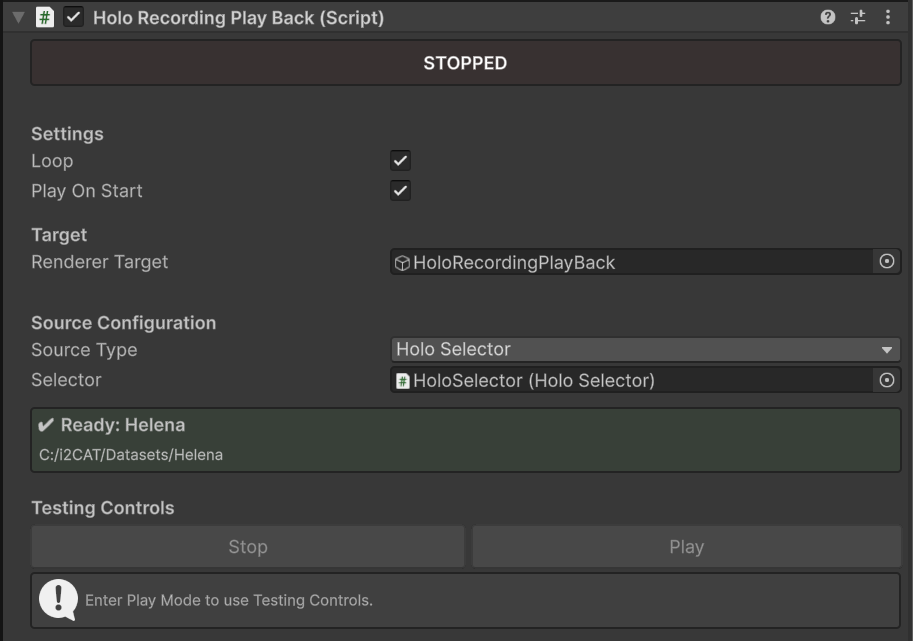 Figure 1: The HoloRecordingPlayBack component in the Unity Inspector. It shows the Status Header, Playback Settings, Source Configuration, and Testing Controls.
Playback Settings
- Loop (bool): If enabled, the dataset will restart automatically upon completion.
- Play On Start (bool): If enabled, playback begins automatically during the Unity
Start()execution phase. - Renderer Target (GameObject): The target GameObject where the visual mesh renderer (
HoloCapturerRenderer) will be attached. If left empty, it defaults to the GameObject holding this script.
Source Configuration
- Source Type (Enum): Determines how the dataset path is resolved.
HoloSelector: Uses theHoloSelectorsub-module to dynamically manage and select from a library of datasets.AbsolutePath: Allows manual entry of a direct file path to a single dataset folder. Useful for quick testing.
- Selector (HoloSelector): Reference to the
HoloSelectorcomponent. If null, the system will attempt to find one on the same GameObject or within the scene duringAwake(). - Absolute Dataset Path (string): The direct path used when
SourceTypeis set toAbsolutePath.
Testing Controls & Feedback
- Status Header: Displays the current state (
STOPPED,PREPARING..., orPLAYING). - Validation Feedback: Displays a green "Ready" message with the dataset name if the path is valid and contains
cameraconfig.jsonand audio files. Displays a red warning if invalid. - Play/Stop Buttons: Available only in Play Mode. They interact securely with the API, disabling themselves during the
IsPreparingphase to prevent native crashes.
2.2. Public API Reference
Properties
public bool IsPlaying { get; }Returnstrueif the dataset is currently actively playing frames and audio.public bool IsPreparing { get; }Returnstrueif the native C++ reconstructor is currently initializing. Crucial: You must not spamPlay()orStop()while this is true to prevent native deadlocks.
Events
public event Action OnPlaybackStarted;Fired when the first frame is ready and playback begins.public event Action OnPlaybackStopped;Fired when playback is fully halted.
Methods
public void PlayDataset(string _folderName)Starts playback using a specific dataset folder name. RequiresSourceTypeto beHoloSelector.public void PlayFromAbsolutePath(string _fullPath)Starts playback directly from a provided absolute path, bypassing the selector logic.public void StopPlayback()Halts the current playback. It features a Deferred Stop mechanism: if called whileIsPreparingis true, it queues the stop request and executes it safely once the native thread finishes.public void SetVolume(float _volume)Adjusts the volume of the audio pipeline (Range:0.0fto1.0f).
API Example: Implementing a UI Play Button
This snippet from the Sample UI demonstrates how to safely check the component's state before issuing a Play command:
private void OnPlayClicked()
{
    if (controller == null) return;

    if (controller.SourceType == HoloRecordingPlayBack.InputSource.HoloSelector)
    {
        string selectedFolderName = DatasetDropdown.options[DatasetDropdown.value].text;

        // PRE-FLIGHT CHECK: Prevent Native C++ crash if folder was deleted from OS
        if (controller.Selector != null)
        {
            int idx = controller.Selector.GetDatasetIndexByName(selectedFolderName);
            if (idx >= 0 && idx < controller.Selector.GetFoundDatasets().Count)
            {
                string path = controller.Selector.GetFoundDatasets()[idx];
                if (!IsDatasetValid(path))
                {
                    Debug.LogWarning("Dataset missing on disk! Aborting play.");
                    controller.Selector.Refresh(false);
                    return;
                }
            }
        }
        // Safe to play
        controller.PlayDataset(selectedFolderName);
    }
}
3. Sub-module: HoloSelector
The HoloSelector is a strict dependency module used by HoloRecordingPlayBack when in HoloSelector mode. It acts as the file system librarian, responsible for resolving paths, scanning datasets, validating JSON/Audio configurations, and providing Smart UX auto-recovery.
3.1. Inspector Reference
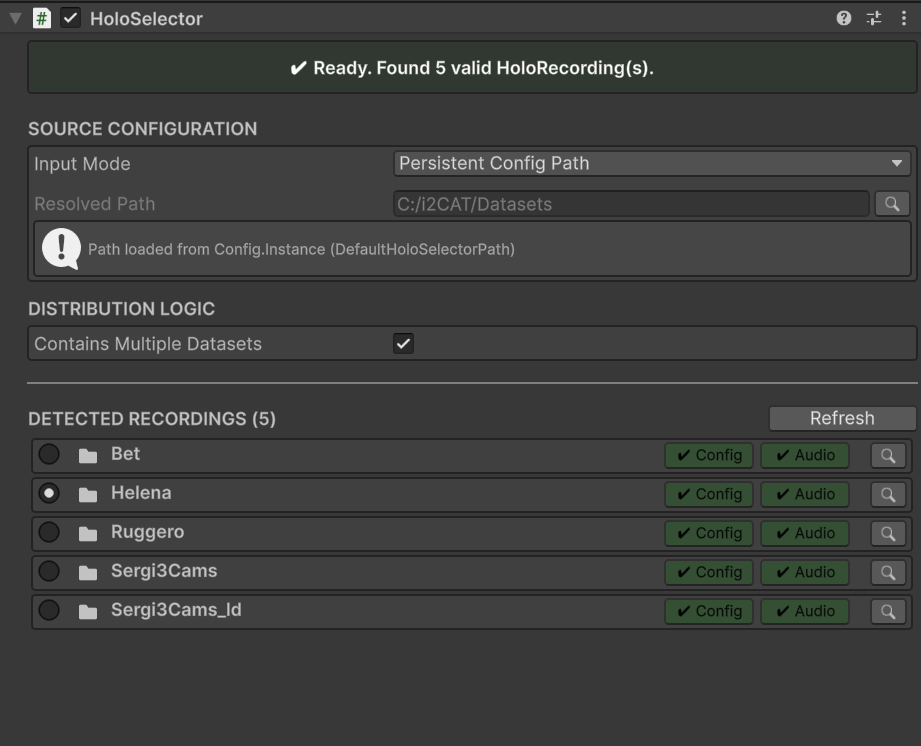 Figure 2: The HoloSelector Inspector. Shows the Source Configuration, Distribution Logic, and the Detected Recordings list with Radio Buttons, Badges, and Search Icons.
Source Configuration
- Input Mode (Enum):
ManualInput: User defines an arbitrary path.PersistentConfigPath: Automatically readsconfig.jsonfromStreamingAssets.PersistentCameraConfigPath: Automatically readscameraconfig.jsonfromStreamingAssets.
- Search Icon (Button): For persistent modes, opens the native Windows Explorer directly to the resolved file location.
Distribution Logic
- Contains Multiple Datasets (bool): If checked, treats the root path as a container and scans subfolders. If unchecked, treats the root path as a single dataset.
- Smart Auto-Recovery: If the system finds 0 valid datasets upon refresh, it will temporarily flip this checkbox. If datasets are found with the alternate setting, it automatically saves the correction and displays a warning.
Detected Recordings (Feedback UI)
- Radio Buttons: When multiple datasets are found, users can select the active dataset (
SelectedIndex) directly via radio buttons. - Clickable Badges: Displays
✔ Configand✔ Audioif the required files exist. Clicking them reveals the file in the OS.
3.2. Public API Reference
While mostly used internally by HoloRecordingPlayBack, developers can access these methods to build custom UI lists or library managers:
public int SelectedIndexThe integer index of the currently targeted dataset in the Editor.public void Refresh(bool _allowAutoCorrect = true)Forces a complete re-scan of the directory. Passtrueto enable Smart UX auto-recovery.public List<string> GetFoundDatasets()Returns a list of all validated absolute paths.public string GetSelectedDatasetName()Returns the folder name of the currently active dataset based on theSelectedIndex.public Action OnDatasetsRefreshedEvent invoked whenever the list of available datasets changes. UI components should subscribe to this.
API Example: Populating a UI Dropdown
This snippet from the Sample UI shows how to subscribe to the module's events and retrieve dataset names:
private void Start()
{
    // Subscribe to refresh events
    holoSelector.OnDatasetsRefreshed += RebuildDropdown;
}

private void RebuildDropdown()
{
    DatasetDropdown.ClearOptions();

    // Fetch valid paths from the selector
    List<string> paths = holoSelector.GetFoundDatasets();
    List<string> options = new List<string>();

    // Extract folder names
    foreach (string p in paths)
    {
        options.Add(new DirectoryInfo(p).Name);
    }

    DatasetDropdown.AddOptions(options);
}
4. Troubleshooting & Error Handling
Working with local file systems and native plugins can sometimes lead to missing file errors. The HoloRecordingPlayBack and HoloSelector components are designed to gracefully catch these issues and provide visual feedback instead of crashing.
Here is a guide to understanding the system's feedback and resolving common issues:
4.1. Red Warning: "Invalid path or missing config/audio"
Location: HoloRecordingPlayBack Inspector (Bottom section).
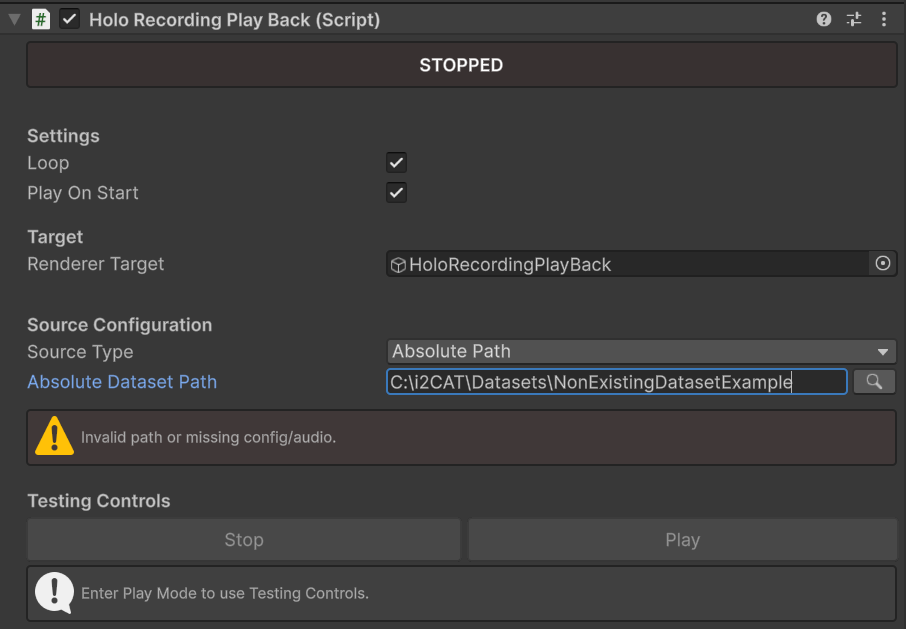 Figure 3.1: Screenshot showing the HoloRecordingPlayBack component with a red background, the "Invalid path or missing config/audio" error box, and the Play button disabled.
- What it means: The currently active dataset (either from the
AbsolutePathfield or the actively selected radio button in theHoloSelector) is incomplete. - How to fix it: The system absolutely requires a
cameraconfig.jsonfile and at least one audio file (.wav,.ogg, or.mp3) to boot the native C++ reconstructor safely. Check your OS folder to ensure the volumetric capture process exported these files properly. ThePlaybutton will remain disabled until the files are restored.
4.2. Red Badges: "Missing" (Config or Audio)
Location: HoloSelector Inspector (Detected Recordings list).
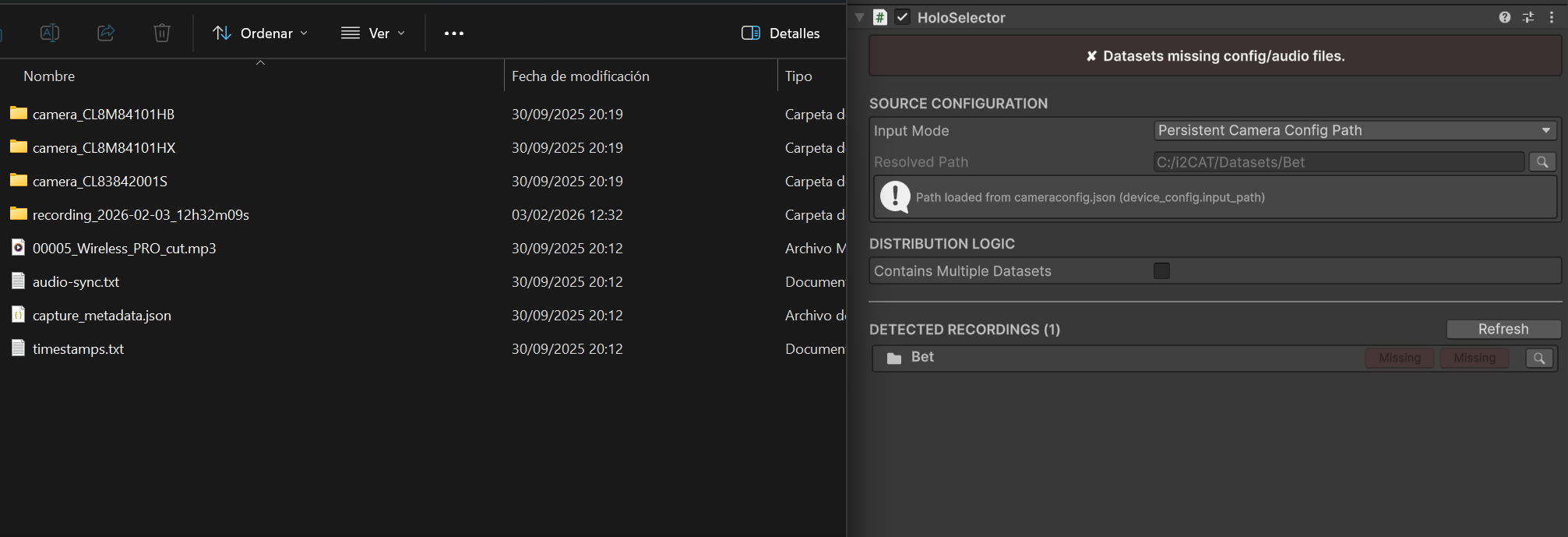 Figure 4.1: Screenshot showing a specific dataset row in the HoloSelector list. The "Config" or "Audio" badge should be red with the text "Missing", while valid ones remain green.
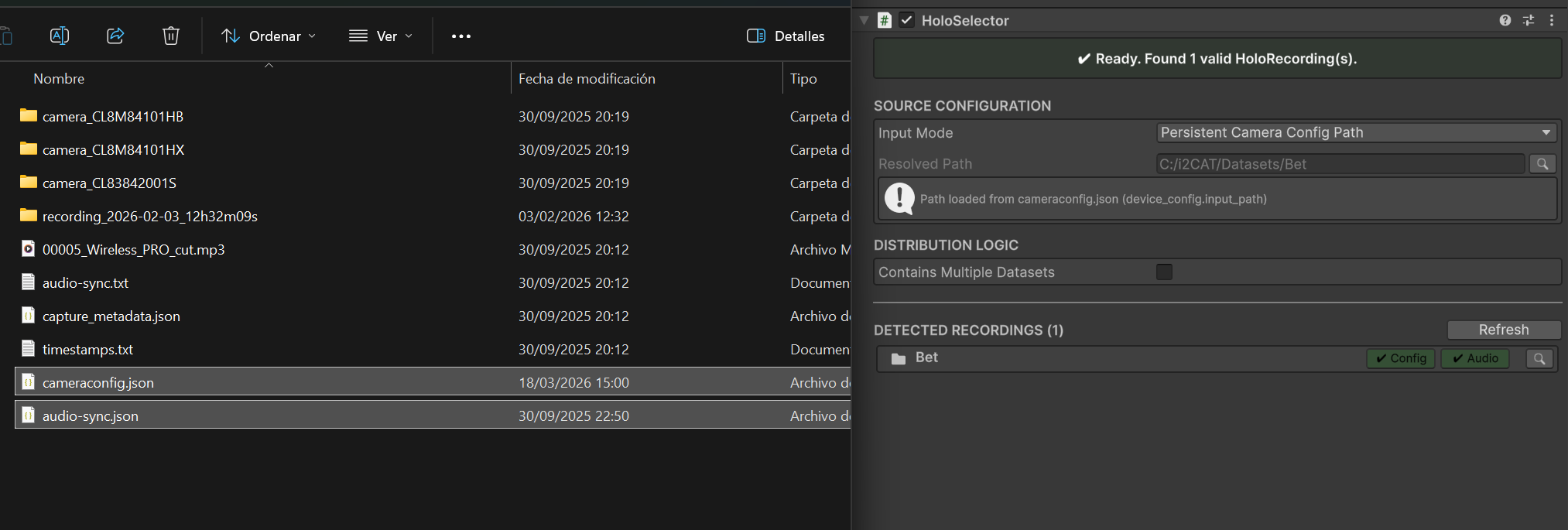 Figure 4.2: Screenshot showing the HoloSelector component with a green background, with both files properly placed, and the Play button enabled.
- What it means: The
HoloSelectorfound the folder, but it failed the internal validation check.- A missing Config means
cameraconfig.jsonis absent. - A missing Audio means there are no valid audio files inside the folder. (Note: While
audio-sync.jsonis highly recommended for perfect lip-sync, the system only strictly requires a playable audio file to pass this specific check).
- A missing Config means
- How to fix it: Click the magnifying glass ("Search Icon") next to the broken dataset to open it in Windows Explorer and investigate why the capture pipeline failed to generate the files.
4.3. Yellow Warning: "Ready (X/Y valid). Some missing files."
Location: HoloSelector Inspector (Top Status Header).
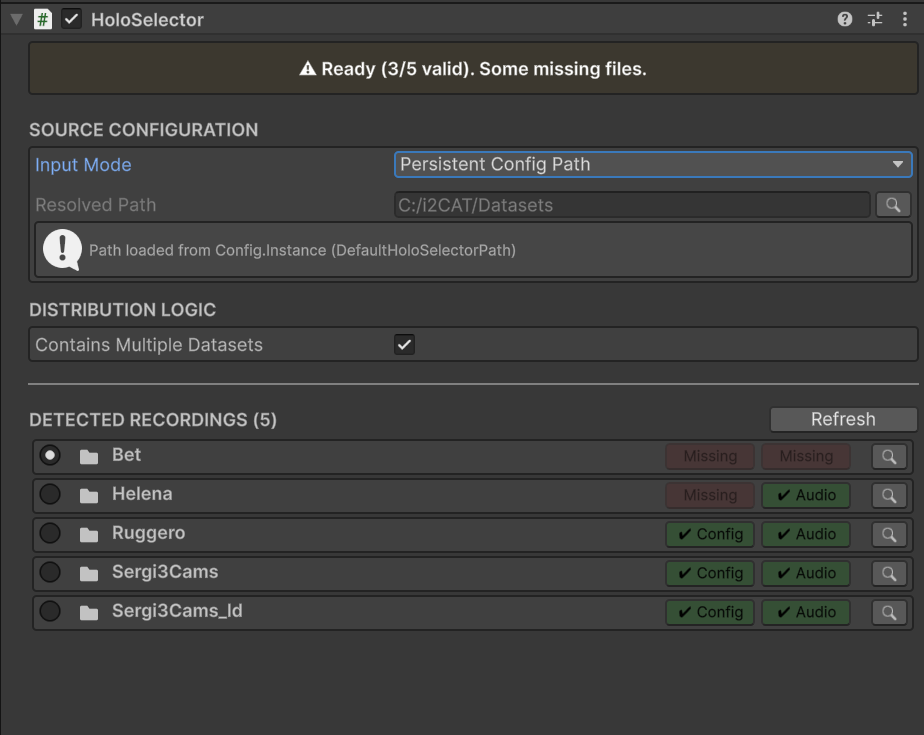 Figure 5: Screenshot showing the top header of the HoloSelector in yellow, indicating a mix of valid and broken datasets.
- What it means: You have
Contains Multiple Datasetsenabled. The system successfully found several folders, but one or more of them are missing their config/audio files. - How to fix it: This is just a warning. You can still safely select and play the valid (green) datasets using the radio buttons. To turn the header green, either delete the broken folders from your hard drive or restore their missing files.
4.4. Yellow Warning: "(Auto-switched to [Mode] to find valid data)"
Location: HoloSelector Inspector (Top Status Header).
- What it means: The system's Smart Auto-Recovery intervened. You pointed the selector to a valid path, but you had the
Contains Multiple Datasetscheckbox in the wrong state (e.g., checked when it was a single dataset, or unchecked when it was a master folder). - How to fix it: No action is required! The system intelligently flipped the checkbox for you so you can continue working without interruption.
4.5. Runtime UI: Play Button is Disabled / "Missing Config/Audio"
Location: In-Game UI (Play Mode).
- What it means: You are experiencing a "Ghost File" scenario. A dataset was selected in the UI dropdown, but it was suddenly deleted or corrupted in the Windows OS file explorer while the Unity app was still running.
- How to fix it: The system's Pre-Flight Check caught the error right before sending it to the native C++ plugin, preventing a hard crash. The UI will automatically refresh the dropdown list and block the Play button. Simply select a new, valid dataset from the updated dropdown to continue.
5. Dataset File Structure & Configuration
For the HoloRecordingPlayBack system to successfully decode and render volumetric video, each dataset folder must adhere to a specific structure.
At its core, the native C++ FFmpeg reconstructor requires explicit instructions on how to read the raw volumetric files and how to sync them with the audio track. The SDK handles this seamlessly in the background by parsing and modifying two essential JSON files at runtime.
5.1. The cameraconfig.json File
This is the primary configuration file generated during the volumetric capture process. It contains internal parameters for the hardware decoder.
Example structure:
{
    "version": 4,
    "camera_type": "recorder",
    "general_config": {
        "log_level": "trace",
        "log_to_console": false,
        "new_frame_timeout": 5
    },
    "config": {
        "general": {
            "device": {
                "input_path": "C:/i2CAT/Datasets/Bet",
                "input_config": "metadata",
                "framerate_config": "timestamps",
                "loop_frames": true,
                "ensure_first": true
            }
        }
    }
}
How the SDK uses it:
When you hit Play, the HoloPathDistributor module parses this file into a C# CameraConfig object. To guarantee that the dataset plays correctly regardless of where it is stored on the user's Windows machine, the SDK dynamically overwrites two specific fields in memory before passing the configuration to the native plugin:
input_path: The SDK injects the absolute resolved path of the folder directly intoconfig.Device.InputPath. This prevents "File Not Found" C++ crashes if the dataset was moved after capture.camera_type: The SDK forces this field to"recorder"to ensure the native pipeline uses the correct playback strategy.
5.2. The audio-sync.json File
Because audio and volumetric frames are recorded through different hardware pipelines, they often have slightly different start and end times. The audio-sync.json file acts as the synchronization map.
Example structure:
{
  "first_frame": {
    "audio": 10.5090,
    "index": 47
  },
  "last_frame": {
    "audio": 18.4170,
    "index": 278
  },
  "frame_0_raw": {
    "audio": null,
    "index": null
  },
  "clap": {
    "audio": null,
    "index": null
  }
}
How the SDK uses it:
To achieve perfect lip-sync and audio alignment, the SDK reads this file and extracts the first_frame.index and last_frame.index values.
These integers are then injected into the CameraConfig object (config.Device.FirstFrame and config.Device.LastFrame).
This instructs the visual reconstructor to trim the initial and final garbage frames, starting and stopping the visual mesh sequence exactly when the loaded audio clip (.wav, .mp3, or .ogg) begins and ends.
Note on Audio Requirements: While
audio-sync.jsonprovides the frame indices, the actual audio playback is driven by a standard UnityAudioSourcecomponent attached to theHoloRecordingPlayBackGameObject. The SDK automatically searches the dataset folder for the first valid audio file and streams it via aUnityWebRequest.