Error Manager
As an integral part of Holo.Core module, the Error Manager acts as an essential communication bridge between the Unity HoloMIT SDK and the end developer. By automatically intercepting backend system exceptions and translating them into clear, on-screen visual alerts, it ensures that critical technical feedback is seamlessly and instantly relayed from the engine directly to the user's interface.
1. Overview and Objective
The Error Manager is a core tool within the HoloMIT SDK designed to capture, manage, and visually display critical errors that occur during the application's runtime. Its primary goal is to prevent silent failures by providing immediate visual feedback on the screen, mirroring the errors found in the Unity Console directly within the user interface.
This system is built around the primary global controller, MessageManager, and utilizes ErrorPopup as a secondary, internal visual module.
Key Features:
- Unity Console Integration: Automatically listens to the system's log messages.
- Strict Filtering: It only reacts and displays messages if the
LogTypeis strictly set to Error or Exception. - Temporary Exception: Currently, the system intentionally filters out and ignores any error containing the string
"BestHTTP". - Thread-Safe Queues: Utilizes object locks (
thisLock) to ensure that errors originating from background threads (such as network responses) do not crash or freeze the main Unity thread.
2. System Architecture
The system is divided into two distinct components with a clear hierarchy:
2.1. Main Tool: MessageManager.cs
This is the core of the Error Manager. It operates as a Singleton, meaning there can and must be only one Message Manager in the scene. All other scripts can access it globally via MessageManager.Instance.
This script is responsible for processing the error queue and instantiating the visual interface when an error meets the display criteria.
2.2. Internal Module (Secondary): ErrorPopup.cs
This module operates in the background from a developer's perspective. It is the script attached to the UI Prefab. The MessageManager instantiates this prefab as a child of itself, creating a floating overlay panel on the screen that shows the exact error captured from the Unity Console. The popup handles its own destruction when the user interacts with it.
3. Step-by-Step Setup Guide
You can implement the Error Manager in your scene using one of two methods:
Option A: Using the Ready-to-Use Prefab (Recommended)
- Locate the Prefab: Navigate to your
Resourcesfolder. - Add to Scene: Drag and drop the
MessageManagerprefab directly into your scene hierarchy. - Enable Listening: Check the
IsAppLogSubscribedtoggle in the Inspector.
Option B: Manual Setup from the DLL
If you prefer not to use the provided prefab, you can build it manually from scratch:
- Create the UI Base: Create a new GameObject in your scene. You must add a
Canvasand aGraphic Raycastercomponent to this object so the UI can render and receive clicks. - Add the Core Script: Add the
MessageManagerscript (located within theHoloCore.dll) to this GameObject. - Assign the Popup Prefab: Navigate to the
Resourcesfolder, find the prefab namedMessagePopup, and drag it into thePopup Prefabslot of theMessageManagerscript in the Inspector. - Enable Listening: Check the
IsAppLogSubscribedtoggle in the Inspector.
Dynamic Activation (For Both Methods)
You can dynamically enable or disable the console listener from any other script by calling:
MessageManager.Instance.SubscribeAppLog(true);
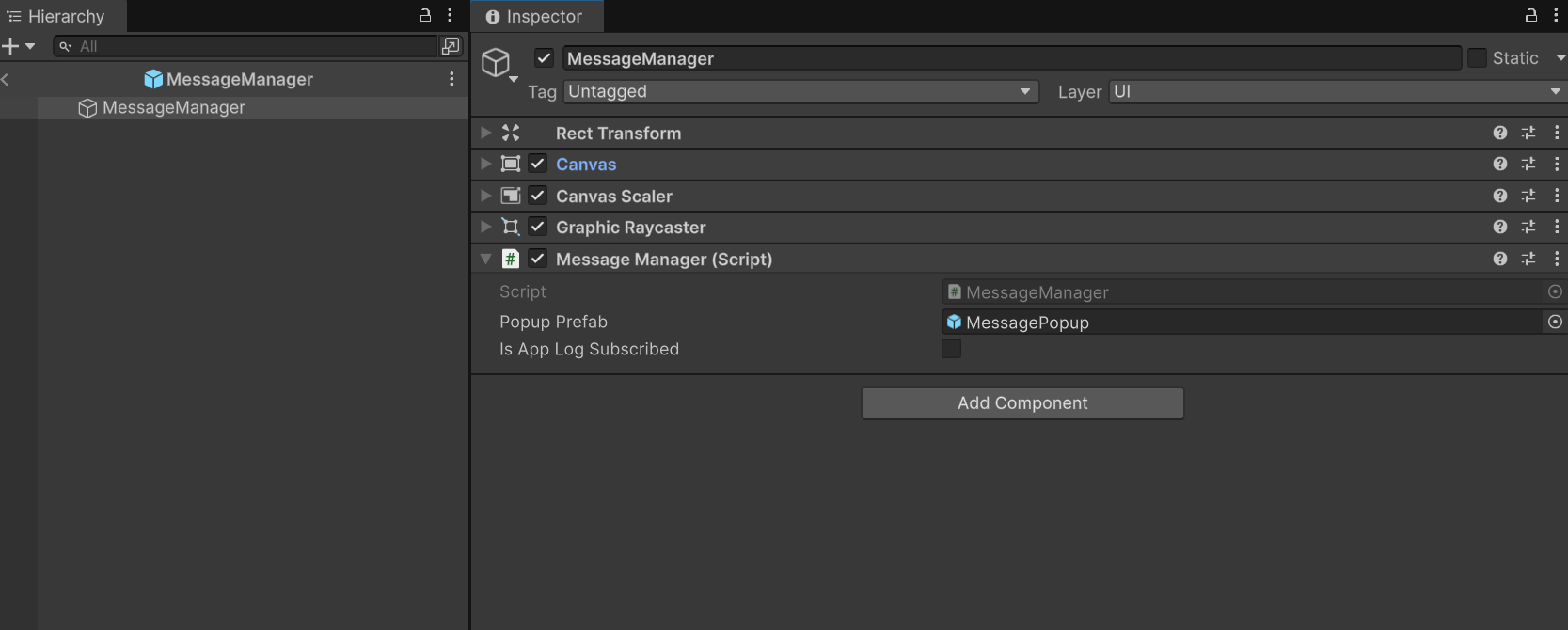 Figure 1: View of the MessageManager setup in the Inspector, showing the assigned MessagePopup prefab and the IsAppLogSubscribed toggle.
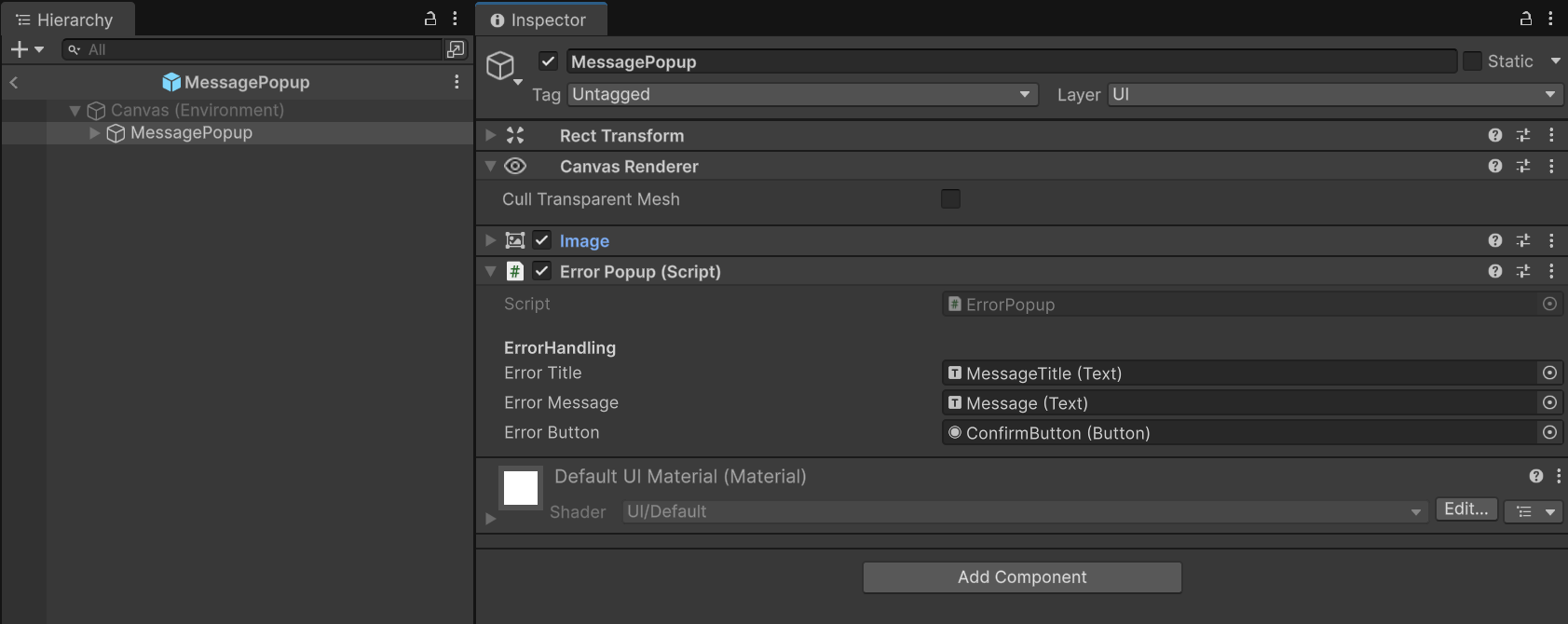 Figure 2: View of the Message Popup setup in the Inspector Error Popup script.
4. Public API Reference
Below are the public functions available for developers to interact with the Error Manager.
MessageManager Methods (Accessed via MessageManager.Instance)
-
public void SubscribeAppLog(bool doSubscribe)- Description: Activates or deactivates the subscription to Unity console events (
Application.logMessageReceivedThreaded). - Usage: Useful for toggling the log listener on or off during specific gameplay moments.
- Description: Activates or deactivates the subscription to Unity console events (
-
public void EnqueueOrchestratorError(int _code, string _message)- Description: Manually adds an error originating from the HoloMIT Orchestrator to the queue.
- Parameters:
_code(Error code),_message(Problem description).
-
public void EnqueueRequestError(int _code, string _message)- Description: Manually adds an error derived from an HTTP or network request to the queue.
- Parameters:
_code(HTTP/Status code),_message(Reason for failure).
-
public void EnqueueMessageError(string _message, LogType _type)- Description: Receives a string (typically a JSON payload), uses Regex to extract the clean value of the
"message"field, and adds it to the queue only if the providedLogTypeisException.
- Description: Receives a string (typically a JSON payload), uses Regex to extract the clean value of the
ErrorPopup Methods (Internal UI Use)
Note: As a developer, you will rarely call these functions manually, as the MessageManager handles them automatically upon instantiation.
-
public void FillError(string _title, string _message)- Description: Populates the UI text fields with the error's title and message. It includes an internal safeguard that truncates messages exceeding 4096 characters to prevent Unity UI rendering crashes.
-
public void ErrorButton()- Description: Linked to the "Close" or "Accept" button on the popup UI. Destroys the current
gameObject, clearing the overlay from the screen.
- Description: Linked to the "Close" or "Accept" button on the popup UI. Destroys the current
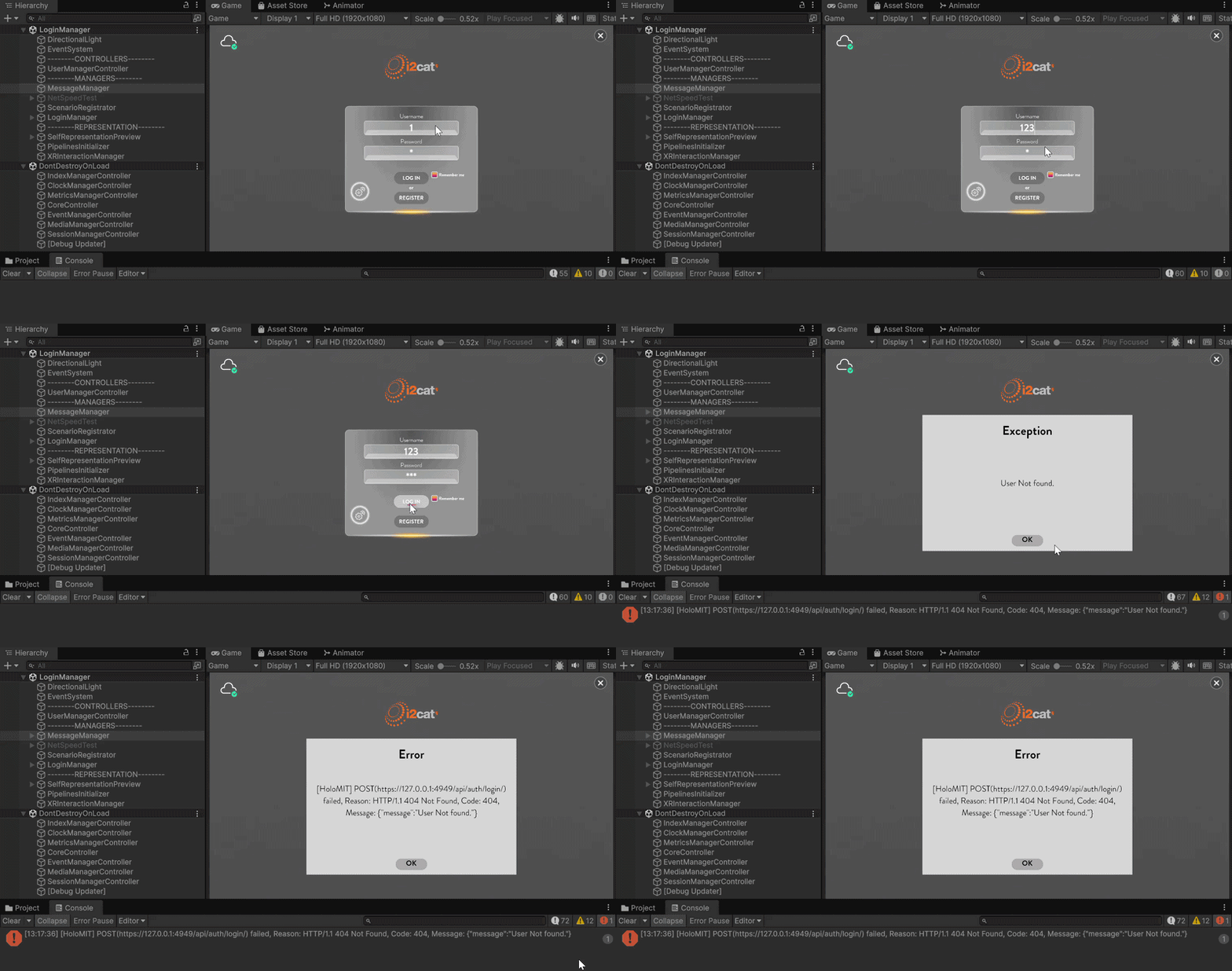
Figure 3: Example of the MessagePopup prefab acting as a floating overlay, instantiated as a child of the MessageManager Canvas to display a Unity Exception.