Hardware Setup
Camera set up
Deciding the overall camera placement
The main objective of using multiple cameras is to have enough overlap between the cameras to avoid shadows when the user moves around and to cover the user all around.
But in the areas of overlap, any calibration issues will be more noticeable, so we need a compromise between having enough overlap and trying to avoid it in relevant areas (e.g. the face)
With this in mind, two things need to be accounted for when deciding where to put the cameras, the vertical and the horizontal layout.
The horizontal layout of the cameras will mainly account for the degrees around the user that will be covered the vertical positions of the cameras will determine the height of the scene that is captured.
Horizontal layout
The basic rule of thump is to try to have the cameras at equal distances to the center, so basically having them in a circle around the capture area, ideally designating one of them as the main camera the user should look at.
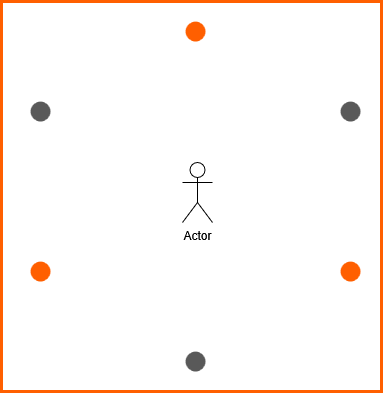
Figure 1: Positioning the cameras
The figure shows how to position 3 cameras (in orange) and how 3 more cameras would be added (in gray).
Vertical layout
In general, the best option is to position the cameras at more or less chest height and vertically (see figure 2, top camera). Having them vertically allows for a single camera to capture the full body of a person (see figure 2, top right).
To remove some shadows, another option is to add two cameras in the same position but at different heights (see figure 2). In this case, it's important to ensure that both cameras are not seeing the face of the user. The top camera can be put both vertically or horizontally, the decision needs to take into account:
- The contrast between top and bottom. If it's high, it will be better to use the top camera in vertical position as the color correction algorithm will work better
- The scene illumination. If all the light sources cannot be well controlled, both cameras may see the same color too differently, the color correction won't be able to correct it, and then it's better to reduce the overlap area by having both cameras horizontally and forcing to have the small overlap area where it can be less noticeable, around the midriff.
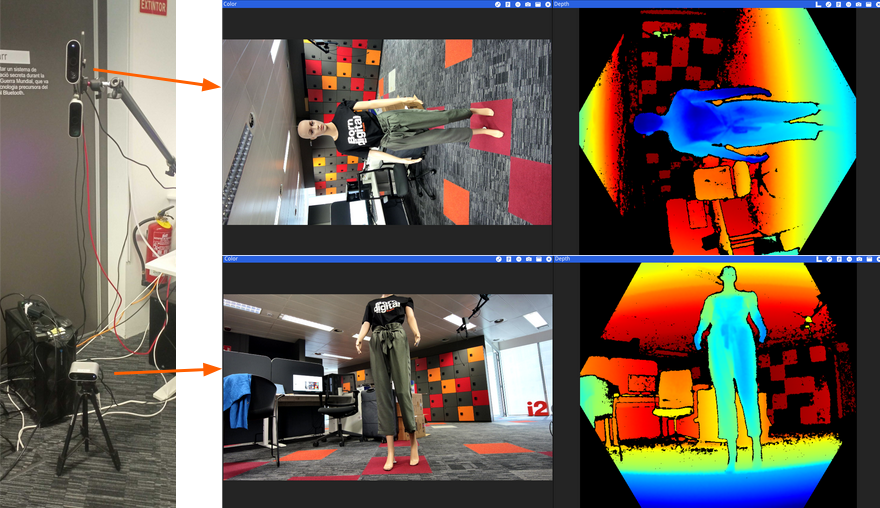
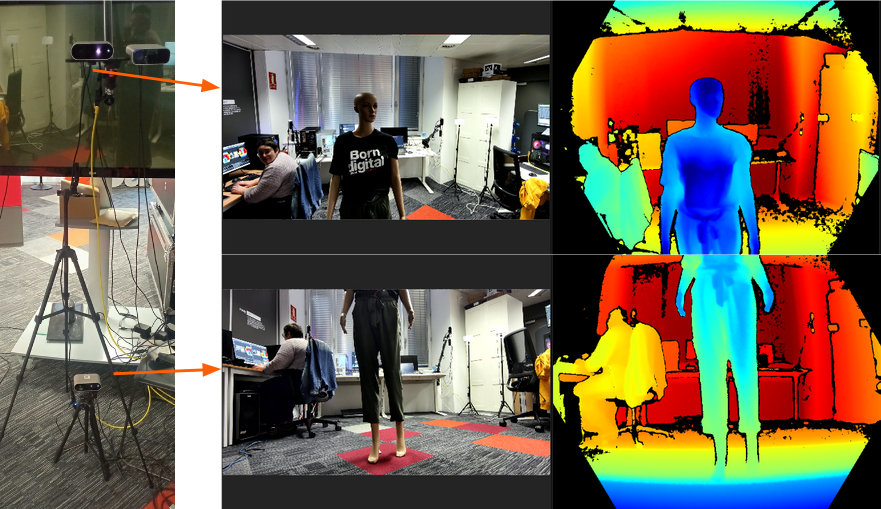
Figure 2: Two-camera vertical column. Left, photo of the camera positions, right, screenshot of the color and depth captured by each of the cameras
Single camera layout
Note that even if only one camera is used, calibration is still recommended as this will generate the transformation matrix to put the captured 3D scene in the same coordinate system as HoloMit.
Adjust cameras
After the general positioning of the cameras, it's important to check the cameras are actually pointing to the center of the capturing area. This step is really important when setting the capturing system for a good quality capture or when cameras are placed in complicated configurations (e.g. in a 180º configuration). The objective is to make sure that all cameras are looking at the center of the scene and are capturing what we want them to. It's also useful for checking they are seeing enough markers on the calibration board.
- Look at cameras in the viewer and validate they are properly detected
- Open color and depth streams
- Adjust camera position according to what they are seeing trying to center the capturing area and have the best color.
Orbbec Viewer Notes
Things to look at when using the viewer:
- When cameras are configured for synchronization, until the primary camera is started, the secondary cameras might not start streaming.
- If one or more still don't start streaming, check the network-sync cables are properly connected (especially if one of the cables has a connector without the locking piece)
- Ensure all cameras are detected with USB3.0+ connection
- If the cables should work, make sure they are properly connected, otherwise, try to change the cables
- Take note if one of the cameras takes a little more time to be detected.
- It's not a problem, but it might mean that when calibrating you need to specify the number of cameras in the
camera config file:
device_config > num_devicesto force the capturing system to query the SDK more than once.
- It's not a problem, but it might mean that when calibrating you need to specify the number of cameras in the
camera config file:
Adjust the position
Move the camera in place or change the height to try to center the user in the image and capture the full height. To check this have someone in the middle or a manikin to simulate a person standing there (see figure 3).
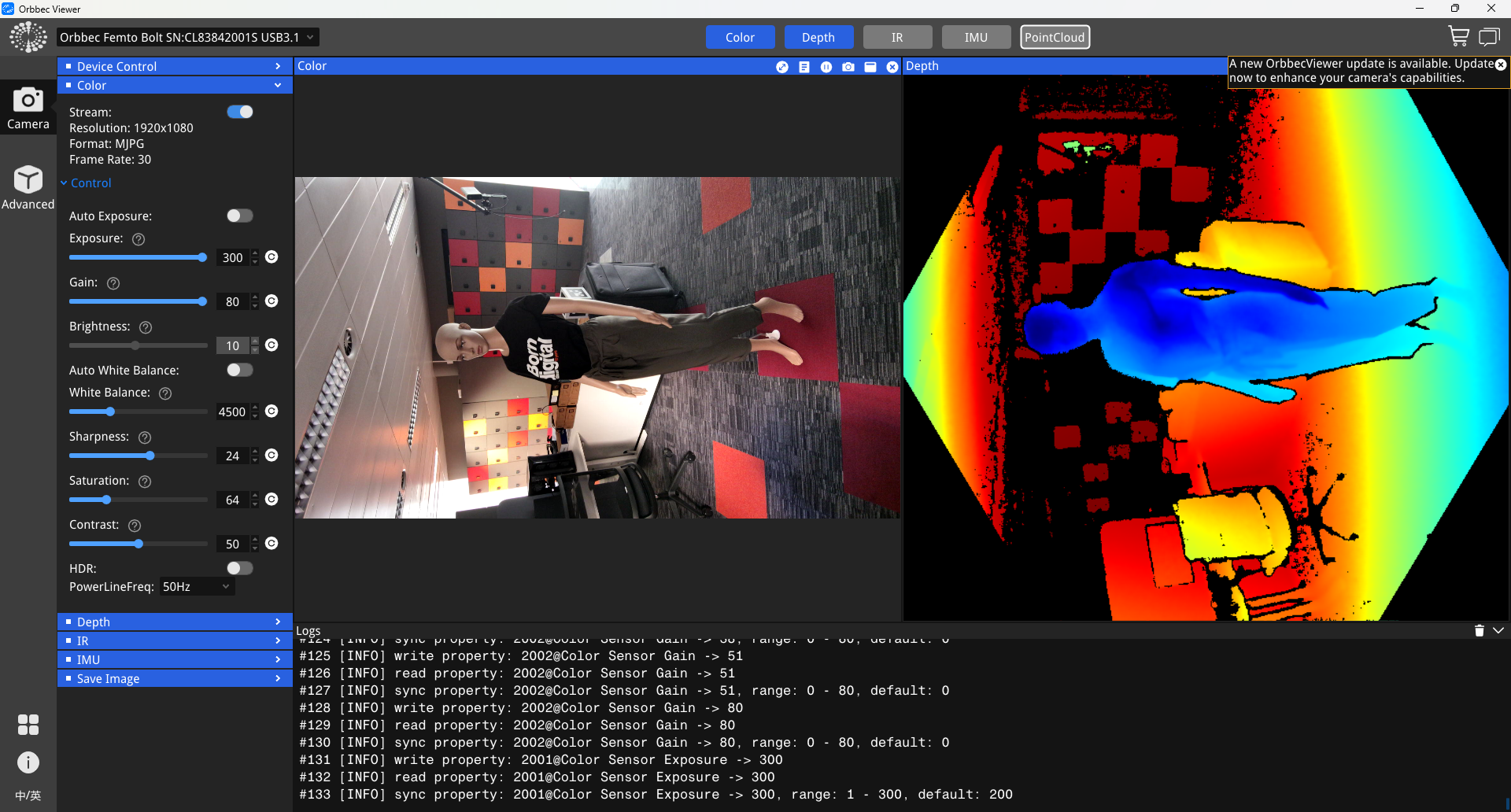
Figure 3: Screenshot of the orbbec viewer with a centered view of the scene and the color control menu opened
Adjust the color
To improve color coherence between all the cameras, try setting your capturing area:
- Avoid harsh and direct lightning
- Try to have all light sources to be diffuse and the same color temperature
Moreover, it's important to force cameras to not use automatic exposure and color temperature. Use the viewer to select the appropriate values and then add them to the camera config file.
The parameters to change are:
- Color Exposure
- Gain: Use this to fix dark images
- White Balance: temperature of the ambient lights
If the values in figure 3 were the selected ones, the parameters to add to the cameraconfig.json file would be:
{
  "device": {
    "color_exposure": 300,
    "color_white_balance": 4500,
    "color_gain": 80
  }
}
This will set the same parameters for all cameras. If they should be different for each one, it can be done as well, it can be done manually using the Orbbec Viewer, but a better option would be to use the CapturerViewer to adjust the values at runtime, and it allows you to save the config file automatically. Capturer Viewer will be published soon.
{
  ...
  "config": {
    "serial1": {
      "device": {
        "primary": true,
        "color_exposure": 300,
        "color_white_balance": 4500,
        "color_gain": 80
      }
    },
    "serial2": {
      "device": {
        "color_exposure": 250,
        "color_white_balance": 4500,
        "color_gain": 40
      }
    }
  },
  ...
}
- Note that in this case, the primary camera configuration is passed differently.